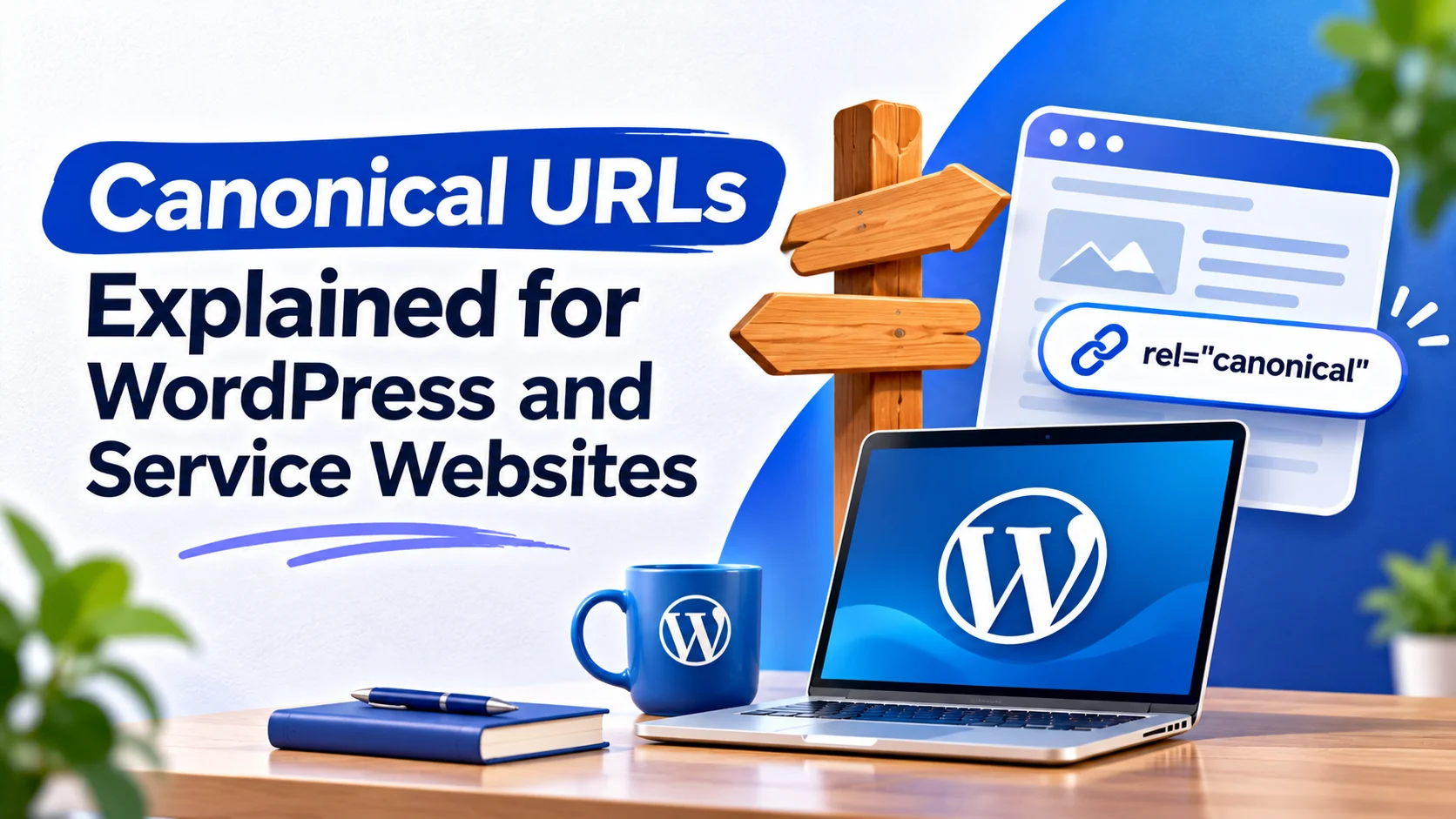
Canonical URLs help Google understand which version of a duplicate or very similar page you prefer. A canonical tag identifies your preferred URL, but Google may still choose another version. For WordPress and service websites, the main question is whether duplicate URLs need to remain accessible. Use a canonical tag when they do. Use a relevant 301 redirect when retiring an old page.
What Are Canonical URLs?
A London roofing business might have these two addresses for one service page:
https://example.co.uk/roof-repairs/
https://example.co.uk/roof-repairs/?utm_source=email
Both may show the same service page. The second URL simply contains a tracking parameter.
The business can identify the clean URL as its preferred version:
<link rel=”canonical” href=”https://example.co.uk/roof-repairs/” />
This tag belongs in the HTML <head>. It does not redirect visitors, remove the alternative URL or guarantee Google’s selection.
Why Do Canonical URLs Matter for SEO?
When several URLs show the same content, Google may select a version you do not want appearing in search results. Clear Canonical URLs help Google identify the preferred version and may consolidate signals from duplicate URLs. For service businesses, that often means favouring a clean service URL over a tracking or parameter version. Canonical tags may also reduce unnecessary crawling of duplicates. However, they do not block crawling or guarantee indexing.
Self-Referencing Canonical URLs in WordPress
A self-referencing canonical points a page to its own preferred URL.
For example:
https://example.co.uk/roof-repairs/
may contain:
<link rel=”canonical” href=”https://example.co.uk/roof-repairs/” />
This tells Google that the current URL is the preferred version. WordPress SEO plugins commonly generate self-referencing Canonical URLs automatically. You usually do not need to add them manually.
When Should You Use Canonical Tags or 301 Redirects?
Choose based on whether the alternative URL should remain accessible. A canonical keeps both URLs working. A 301 redirect sends visitors to the replacement.
| Situation | Recommended action | Reason |
| Tracking URL shows the same page | Canonical tag | Keeps tracking URL accessible |
| Two identical URLs must remain accessible | Canonical tag | Identifies preferred version |
| Old service page permanently replaced | 301 redirect | Sends visitors to replacement |
| Two articles merged into one | 301 redirect | Retires old article URL |
| HTTP and HTTPS show the same page | Redirect HTTP to HTTPS | Enforces secure URL |
| Pages serve different search needs | Keep separate | Both may deserve indexing |
| Page must remain accessible but not indexed | Consider noindex | Excludes page from search |
Use noindex only when a page should remain accessible but should not appear in search. It is not a substitute for consolidating duplicate-page signals.
Canonical URLs Examples for Service Websites
Different service-page situations need different decisions.
Example 1: Two Similar Service Pages
A plumbing company has:
/emergency-plumber-london/
/24-hour-plumber-london/
Both pages describe the same service, cover the same area and answer the same questions. If they serve the same search intent, consider combining their useful information. Then redirect the retired URL to the retained page. Update internal links and the XML sitemap to use the final address.
Example 2: Similar Pages for Different Locations
A business offers plumbing services in Chelsea and Westminster:
/plumber-chelsea/
/plumber-westminster/
These pages may share service information but serve different local searches. If each contains genuine location-specific details and serves distinct needs, both may deserve separate Canonical URLs. Do not point every location page to one general London page simply because the services are similar. A canonical tag should not replace genuinely distinct local content.
When Are Canonical Tags Not Enough?
Google may ignore your preferred canonical when pages differ or technical signals conflict.
The Pages Have Different Main Content
Canonical tags work best for duplicate or very similar pages. If two pages answer different questions, Google may not consider them duplicates. For example, boiler installation and boiler repair pages serve different purposes. Pointing one to the other does not make them equivalent.
The Canonical Points to the Wrong Page
A service page might accidentally point to:
- the homepage;
- a staging URL;
- an outdated page.
That sends the wrong signal about which URL should appear in search. Point the canonical to a relevant, accessible page containing the intended content.
Other SEO Signals Disagree
Your canonical tag may identify one URL while your sitemap lists another. Internal links may also favour a different version. Keep Canonical URLs, internal links and XML sitemaps aligned around the preferred URL. Our planned XML Sitemap Audit guide covers sitemap checks in more detail.
The Page Is Blocked or Noindexed
A canonical tag does not replace indexing controls. A noindex directive tells Google not to include a page in search results. It is not the recommended way to consolidate duplicate URL signals. Blocking a URL through robots.txt may also prevent Google from reading its canonical tag. Our Robots.txt vs Noindex guide explains the difference.
How to Set Canonical URLs in WordPress
Check the existing canonical before changing anything. Most WordPress SEO plugins generate Canonical URLs automatically.
Set a Canonical URL in Yoast SEO
Open the relevant post or page in WordPress. Find the Yoast SEO panel and open Advanced.
Locate the Canonical URL field and enter the full preferred address:
https://example.co.uk/roof-repairs/
Save or update the page. Leave the field empty when Yoast’s automatically generated canonical is already correct.
Set a Canonical URL in Rank Math
Edit the relevant page and open the Rank Math panel. Select Advanced and find the Canonical URL field. Enter the preferred URL and save the page. If the Advanced tab is missing, check whether Rank Math’s Advanced Mode is enabled. Keep the default when it already points to the correct page.
Check the Published Canonical Tag
Open the public page and view its source.
Search for:
rel=”canonical”
Confirm the tag points to the correct address. Avoid adding another canonical through your theme when your SEO plugin already generates one. If two tools create conflicting tags, fix the source of the conflict instead of adding another tag. For wider plugin settings, see Wixdek’s WordPress SEO services.
How to Fix “Google Chose Different Canonical” in Search Console
Google Search Console may report:
Duplicate, Google chose different canonical than user. This means Google selected another representative URL. That choice may be reasonable when the pages or signals support it.
1. Compare the Two Canonical URLs
Open Google Search Console and inspect the affected URL.
Review:
- user-declared canonical;
- Google-selected canonical.
Open both pages and compare their main content. If Google’s selected URL is appropriate, no change may be necessary.
2. Check for Conflicting Signals
If Google’s choice is wrong, review:
- canonical tags;
- redirects;
- internal links;
- XML sitemap;
- HTTPS versions;
- domain versions;
- trailing-slash versions.
Make sure the preferred URL is accessible, indexable and contains the intended content. Correct conflicting signals instead of repeatedly changing only the canonical tag.
3. Request Reindexing When Appropriate
After fixing the issue, inspect the important URL again. You can request reindexing through Search Console. This does not guarantee Google will change its canonical choice. Allow time for Google to crawl and reassess the page.
How to Audit WordPress Canonical URLs
Use a crawler such as Screaming Frog SEO Spider to export:
- URLs;
- declared canonicals;
- HTTP status codes;
- indexing rules.
Flag Canonical URLs pointing to unrelated, redirected or missing pages.
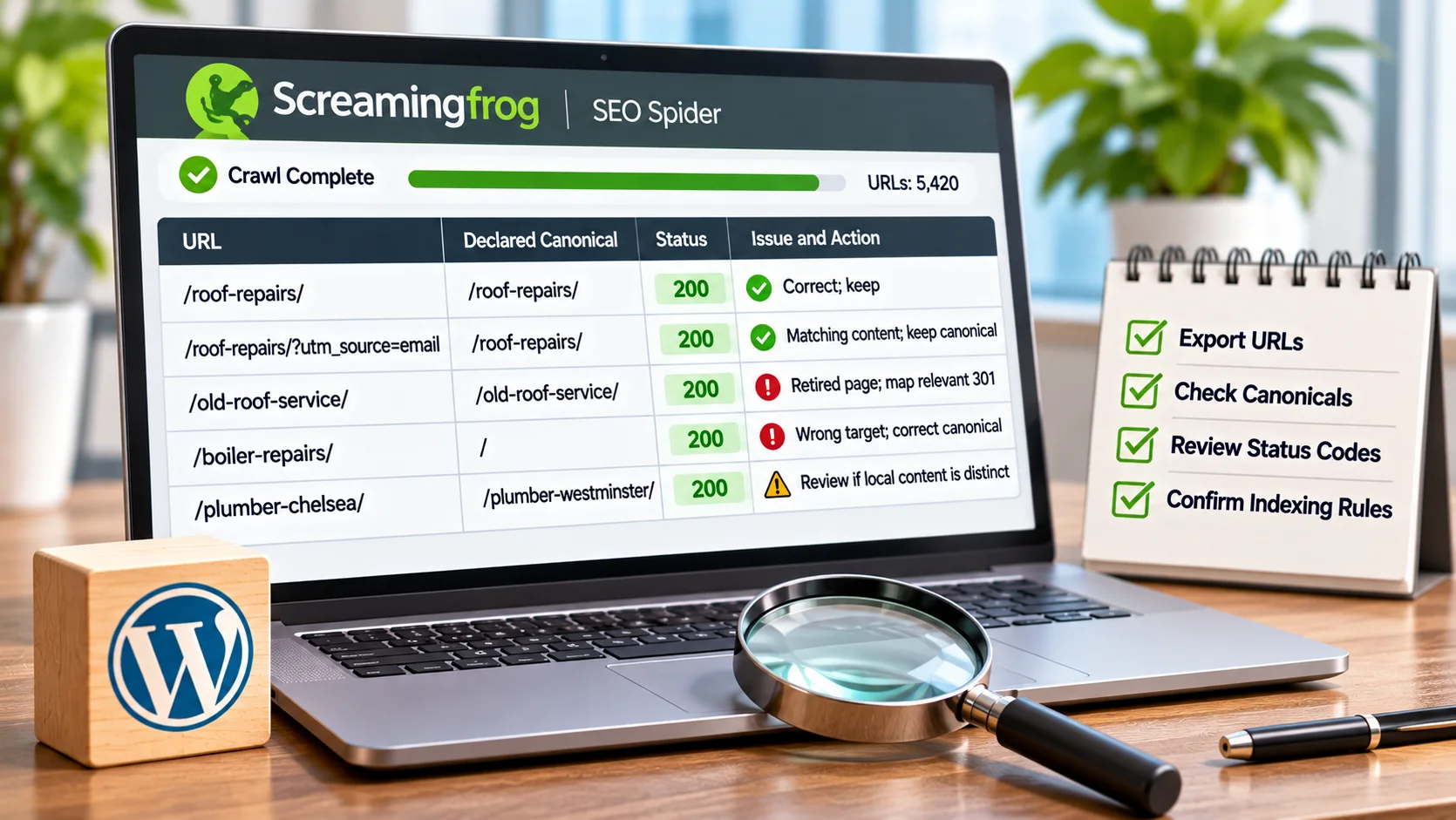
Example Canonical Audit
These examples are illustrative, not Wixdek client results. A real audit should also record Google’s selected canonical from Search Console where available.
| URL | Declared canonical | Status | Issue and action | Google-selected canonical | Verification |
| /roof-repairs/ | Same URL | 200 | Correct; keep | Not checked | Inspect live HTML |
| /roof-repairs/?utm_source=email | /roof-repairs/ | 200 | Matching content; keep canonical | Not checked | Compare both pages |
| /old-roof-service/ | Same URL | 200 | Retired page; map relevant 301 | Not checked | Check redirect response |
| /boiler-repairs/ | Homepage | 200 | Wrong target; correct canonical | Not checked | Recheck source and Search Console |
| /plumber-chelsea/ | /plumber-westminster/ | 200 | Review whether local content is distinct | Not checked | Compare content and Google’s choice |
A crawl records the declared canonical, not Google’s selected version. Search Console shows Google’s choice for an inspected URL. Complete the verification column with real results before using this table as Wixdek project evidence.
WordPress Canonical URLs Checklist
Before signing off changes, check:
- Each important page identifies the intended canonical URL.
- Duplicate URLs point to a genuinely similar preferred page.
- Retired pages use relevant permanent redirects where needed.
- Canonical tags do not conflict with redirects or indexing rules.
- XML sitemaps and internal links favour preferred URLs.
- Search Console has been checked for unexpected canonical choices.
For a wider review, use our WordPress SEO Checklist for UK Businesses.
Frequently Asked Questions
What Are Canonical URLs?
Canonical URLs are the preferred versions of duplicate or very similar pages that you want search engines to recognise as the main version.
Does WordPress Add Canonical Tags Automatically?
WordPress and many SEO plugins can generate canonical tags. Check the published HTML to confirm what your site actually outputs.
Is a Canonical Tag Better Than a 301 Redirect?
Use a canonical when duplicate URLs must remain accessible. Use a permanent redirect when retiring an old URL.
Should Every Service Page Have a Self-Referencing Canonical?
Usually, yes. Exceptions include intentional duplicates or pages needing different indexing treatment.
Need Help Fixing Canonical URLs?
If Google keeps choosing the wrong service page, Wixdek can review Canonical URLs, redirects and conflicting technical signals. Explore our Technical SEO services for help identifying and correcting these issues.
By Wixdek