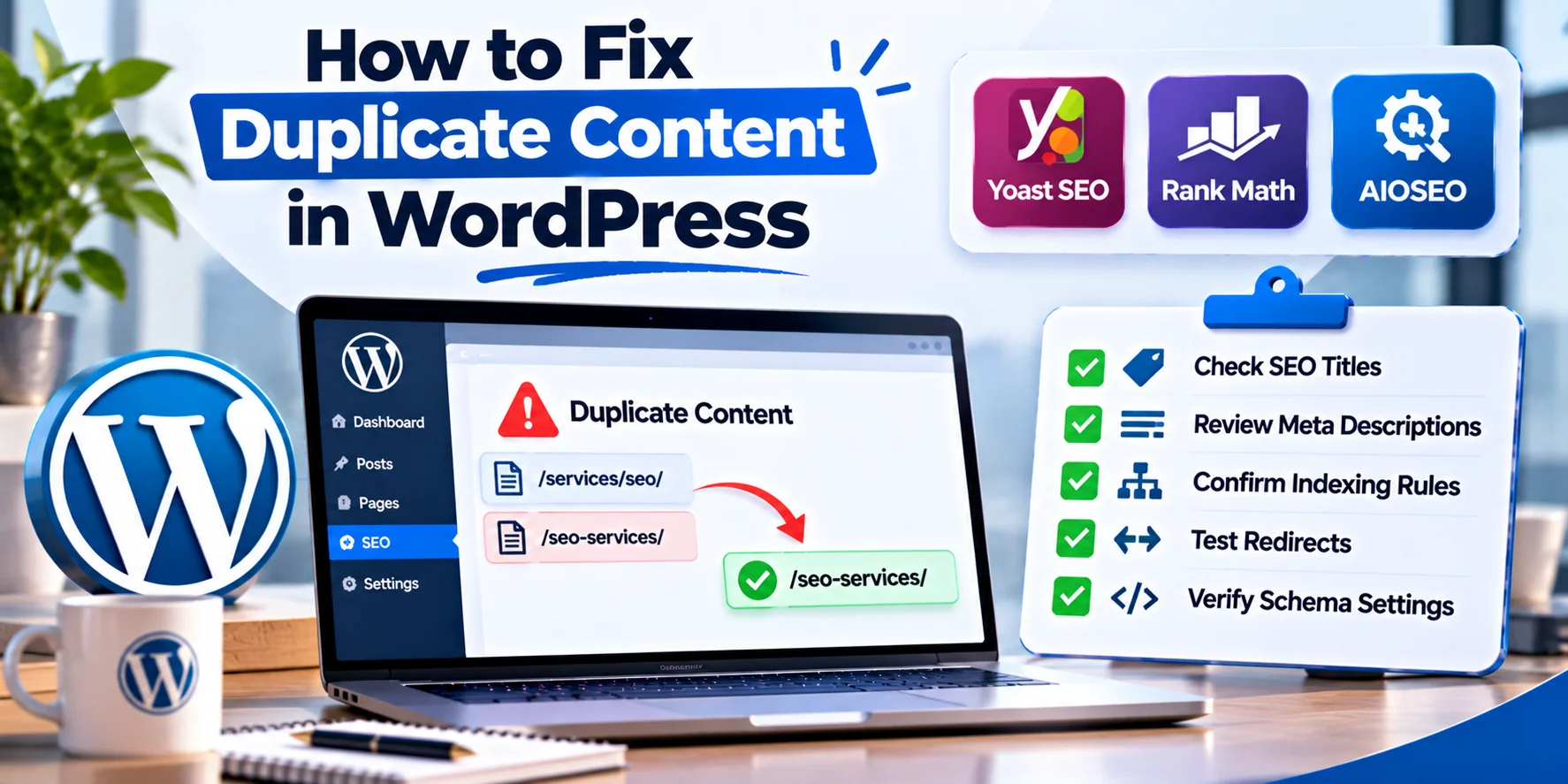
To fix duplicate content in WordPress, find the repeated URLs and decide which pages should stay. Use a canonical tag for duplicate versions, noindex for pages you don’t want indexed, or merge and redirect pages that no longer need separate URLs. WordPress can create duplicate URLs through category archives, tags, page filters, and incorrect SEO settings. These pages aren’t always harmful, but they can make it harder for Google to choose the right version.
This guide shows how to diagnose the cause and choose a safe fix.
How to Find Duplicate Content in WordPress
Start by finding which URLs show the same or very similar content. Don’t change SEO settings until you know which pages need to stay.
1. Check Google Search Console
Open Google Search Console and select your website. Go to Indexing > Pages and review the reasons pages aren’t indexed. Look for reports such as:
- Duplicate without user-selected canonical.
- Duplicate, Google chose different canonical than user.
- Alternate page with proper canonical tag.
These reports don’t always mean something is wrong. Google may simply have found two valid URLs showing the same content. Open a reported URL using the URL Inspection tool. Compare the user-declared canonical with Google’s selected canonical. If Google chooses the correct page, you may not need to make any changes.
2. Find Duplicate Content Pages With a Website Crawler
A tool such as Screaming Frog SEO Spider can help find repeated URLs and page elements. Crawl your WordPress website and review duplicate page titles, meta descriptions, headings, and content. A repeated title alone doesn’t prove that two pages contain the same information. Open the affected URLs and compare their main content. Check whether both pages answer the same search intent. If they serve different purposes, they may need clearer content rather than a redirect.
3. Check Duplicate URLs Manually
Some duplicate URLs are easy to spot in a browser. For example:
example.co.uk/roof-repairs/
example.co.uk/roof-repairs/?utm_source=newsletter
The second URL contains a tracking parameter. If both show the same page, Google may treat them as duplicate versions. You can also search Google for an exact phrase from your content. However, search results alone won’t confirm every duplicate. Confirm the URL pair using Search Console or your site crawl.
Which Fix Should You Use for WordPress Duplicate Content?
Not every duplicate page needs to be deleted or redirected. The right fix depends on whether the URL still serves a useful purpose.
| Situation | Best action | Why |
| Two similar URLs must remain accessible | Canonical tag | Signals the preferred version |
| A low-value archive shouldn’t appear in search | noindex | Excludes that archive from Google Search |
| Two posts cover the same topic and intent | Merge content | Creates one more useful page |
| An old page is no longer needed | 301 redirect | Sends users to the relevant replacement |
| Two pages have distinct purposes | Improve content | Keeps both pages useful and separate |
| A tracking parameter creates the same page | Canonical to the clean URL | Helps identify the preferred address |
Important: noindex is not a way to combine ranking signals from duplicate pages. Choose a canonical or relevant permanent redirect when you need to consolidate duplicate URLs. Use noindex when the page itself should not appear in search. If two pages serve different needs, keep both and make their content distinct.
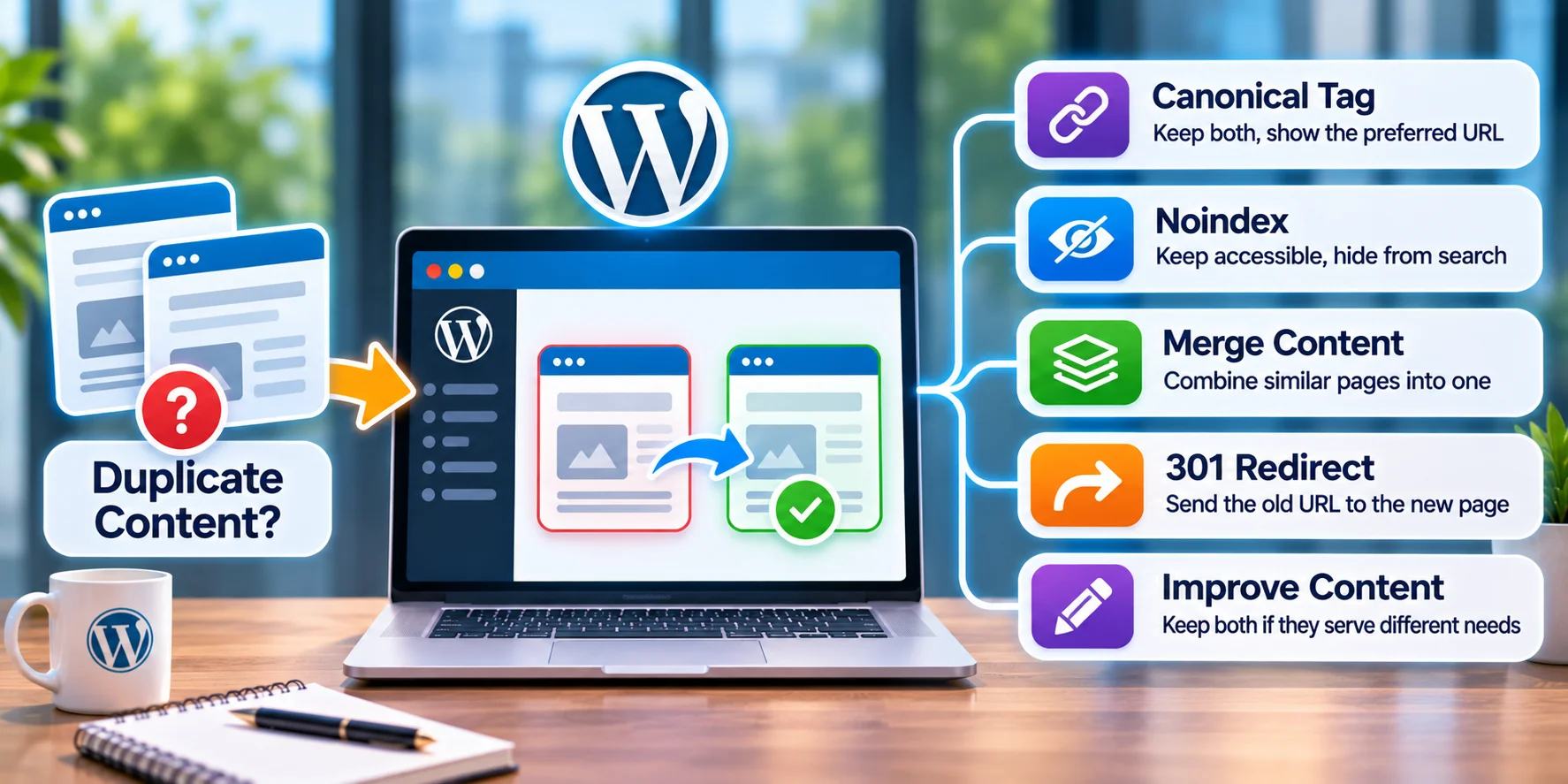
Quick Decision Path
Ask whether both URLs still need to work. If yes, and they show the same main content, use a canonical tag to indicate your preferred version. If a low-value page must stay accessible but shouldn’t appear in Google, use noindex. If two articles answer the same question, merge their useful content. Redirect the retired URL only when a relevant replacement exists. If the pages serve different search needs, keep both and improve their distinct content.
How to Fix WordPress Canonical URL Issues
A canonical URL is the page address you want Google to treat as the main version. WordPress and SEO plugins can generate canonical tags automatically. However, incorrect settings may point Google towards the wrong page.
When Should You Use a Canonical Tag?
Use a canonical tag when similar URLs need to remain available, but one version should be preferred in search. A tracking URL may show the same content as the clean page. The tracking version can point to the main page:
<link rel=”canonical” href=”https://example.co.uk/roof-repairs/” />
This code tells search engines which URL you prefer. Google treats canonical tags as strong signals, not fixed commands. It may still choose another URL if other signals disagree.
How to Check Canonical Tags in WordPress
Open the page in WordPress and find your SEO plugin’s advanced settings. Look for the canonical URL field. Leave the default value when it already points to the correct page. For a custom canonical, enter the full preferred URL and save your changes. Then open the published page and inspect its HTML source. Confirm that the canonical tag points to the intended URL. Avoid adding another canonical tag through your theme when your SEO plugin already generates one.
If two plugins or theme functions output conflicting canonicals, Google may receive mixed signals.
How to Fix WordPress Category and Tag Duplicate Content
WordPress categories and tags help group related posts. They can also create archive pages that repeat information found elsewhere. For example, one blog post may appear in a category archive and several tag archives. That doesn’t automatically make the post duplicate content. Archive pages often show excerpts and serve a different purpose. The problem starts when several archives provide nearly identical lists without helping visitors find anything new.
Should You Noindex WordPress Category Archives?
Not always. Some category pages are useful landing pages that deserve to appear in search. For example, a roofing business might publish several guides under a Roof Repairs category. That archive could help visitors find relevant advice. If the category contains useful posts and serves a clear purpose, keep it indexable. For empty or low-value archives, consider noindex rather than removing them. Open your SEO plugin’s search appearance settings and review the category and tag archive options.
Apply the rule only to the archive types that don’t need search visibility. Google must be able to crawl the page to see noindex. Don’t block it in robots.txt while relying on that rule.
How to Fix WordPress Duplicate URLs With Parameters
URL parameters are extra values added after a question mark. They may appear in tracking links, product filters, sorting tools, or search results. For example:
example.co.uk/services/?sort=popular
example.co.uk/services/?sort=latest
If both pages show the same main information, they may create duplicate URL versions.
What Should You Do With Parameter URLs?
First, check whether the parameter changes the main content. If it only tracks a visit, a canonical pointing to the clean URL is often suitable. Assess sorting and filtering URLs one by one. A sorted list may repeat the same items, while a filtered page may show a genuinely different set of products. Where unnecessary parameter URLs create large crawl problems, your developer may need to change how those URLs are generated or crawled.
Don’t block every parameter URL through robots.txt. Some may be important for finding your products or content. Google no longer offers its old URL Parameters tool in Search Console. Parameter handling now depends on your website setup and crawl controls.
How to Fix WordPress Pagination Duplicate Content
WordPress blogs and product archives often have several pages. For example:
example.co.uk/blog/
example.co.uk/blog/page/2/
Both pages may use similar titles or descriptions, but they contain different posts. That doesn’t mean page two should point to page one as its canonical. Google recommends giving each distinct paginated page its own canonical URL. Keep useful pagination links accessible so search engines can find older content. You can also review page titles and navigation to make the archive easier to use. If pagination repeats the exact same posts due to a WordPress error, repair the archive query.
When Should You Merge or Redirect Duplicate WordPress Pages?
Canonical tags won’t solve every content problem. Sometimes, two WordPress pages target the same search intent and repeat most of the same information. For example, a business might publish: How to Repair a Leaking Roof Leaking Roof Repair Tips If both pages offer nearly identical advice, keeping them separate may add little value.
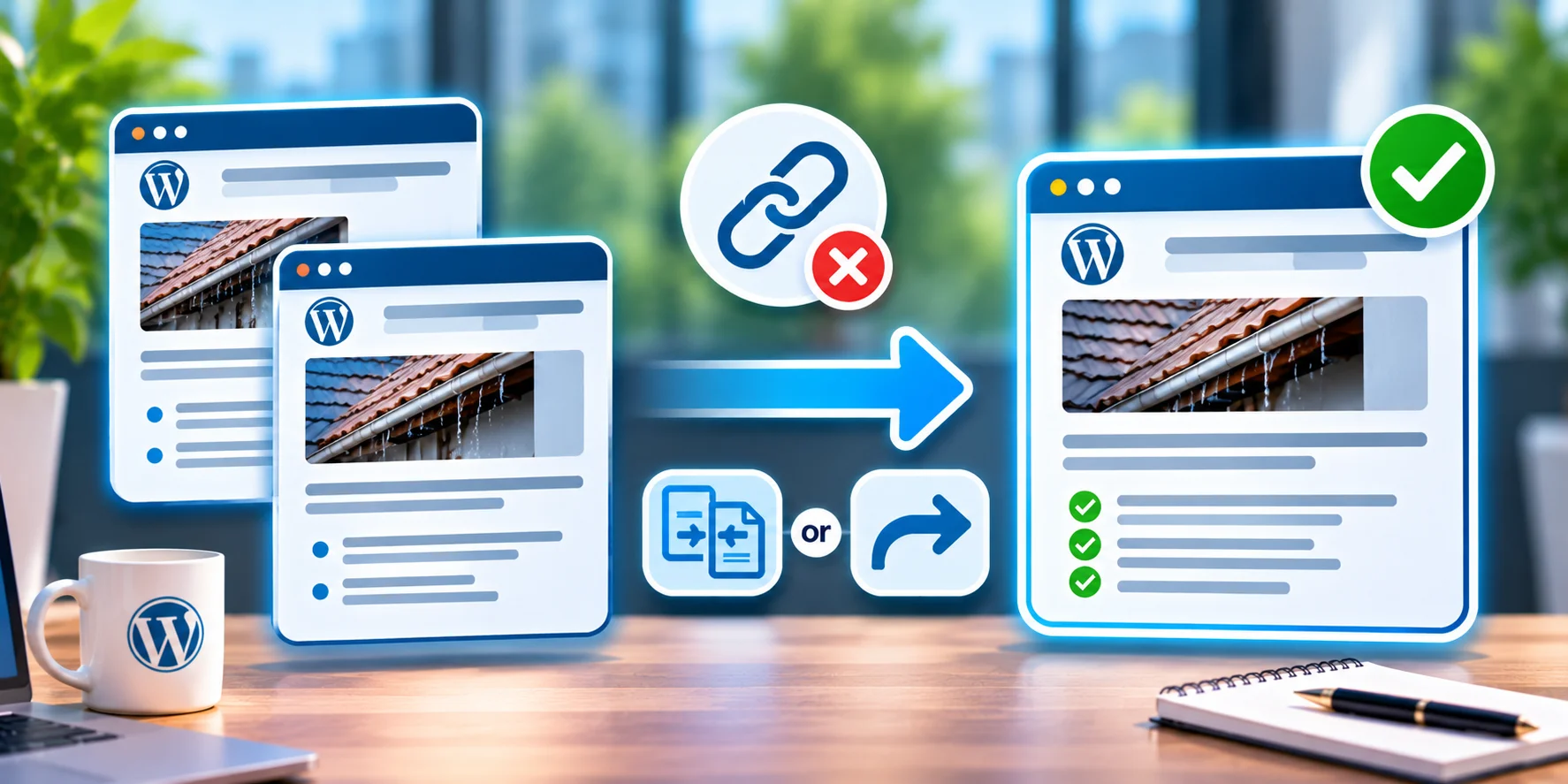
Merge Pages That Serve the Same Purpose
Review both pages before deciding which one to keep. Look at their search queries, organic clicks, internal links, backlinks, and useful information. Choose the stronger page or the URL that best fits your website structure. Move any unique, relevant information from the other page into it. Remove repeated sections and improve the final content. The result should answer the topic more fully without becoming unnecessarily long.
Use a 301 Redirect for the Old URL
Once you’ve merged the content and permanently retired the old page, use a 301 redirect to a closely relevant replacement. For example:
example.co.uk/leaking-roof-tips/
redirects to:
example.co.uk/how-to-repair-a-leaking-roof/
You can use a suitable redirect plugin or server-level rules. Check that the old URL returns a permanent 301 redirect and reaches the correct page. Update your internal links and XML sitemap to use the preferred URL. If no suitable replacement exists, don’t force a redirect to an unrelated page. A genuine removed page can return 404 or 410.
How to Fix Duplicate Meta Descriptions in WordPress
SEO tools may report the same meta description across several pages. This is worth checking, but it doesn’t always mean the pages contain duplicate content. Open the affected pages and compare their topics. If they serve different purposes, write a clear description for each one. A roof repair page and a roof replacement page should describe their different services. If the pages repeat the same information, review the content itself before changing the descriptions.
A new meta description won’t fix two pages that target the same search intent.
How to Check Your WordPress Duplicate Content Fixes
After making changes, confirm that the right URLs and settings are in place. Start with the affected pages and check their live behaviour.
| Fix applied | What to verify |
| Canonical tag | It points to the correct live URL |
| noindex | The rule appears on the intended page |
| 301 redirect | The old URL reaches the correct replacement |
| Content merge | The main page contains the useful information |
| Archive changes | Important categories remain accessible |
| Parameter fix | Unwanted duplicate URLs are handled correctly |
| Pagination fix | Each distinct page has the correct canonical |
Use Search Console to inspect important URLs after your changes. Check whether Google’s chosen canonical matches the page you intended. Search Console reports can take time to update after Google crawls the changes. Avoid making several unrelated changes at once. This makes it harder to tell which fix worked. If your site has conflicting redirects, indexing rules, or canonical tags, a technical SEO review can help identify the cause.
Frequently Asked Questions
Does duplicate content hurt WordPress SEO?
Duplicate content isn’t automatically a Google spam violation. However, repeated URLs may waste crawling resources or cause Google to choose a different page for search results.
Can Yoast or Rank Math fix duplicate content?
Both plugins can help manage canonical and indexing settings. They can’t decide whether two pages should be merged or rewritten. For a feature comparison, see our planned Yoast vs Rank Math vs All in One SEO guide.
Can Changing a WordPress Theme Create Duplicate Content?
Yes, a theme change can affect archive layouts, metadata output, or canonical tags. Our planned Changing a WordPress Theme Without Losing Rankings guide covers that risk.
Can a WordPress Migration Cause Duplicate URLs?
Yes. A migration can leave old and new URLs accessible at the same time. Our planned WordPress Website Migration SEO Checklist covers checks when moving a site.
Need Help Fixing WordPress Duplicate Content?
Duplicate URLs aren’t always a problem, but the wrong fix can remove useful pages from search. Wixdek helps UK businesses review WordPress indexing, canonical tags, redirects, and site structure. Explore our WordPress SEO services to identify duplicate content issues and plan the right fixes. Request a WordPress SEO Audit
By Wixdek