WordPress Image SEO means making images faster to load, easier to understand and easier for Google to discover. Start by reducing oversized files, writing useful alt text and checking how images appear on your published pages. Large images can slow pages. Missing alt text can make important pictures harder to understand, while poorly loaded images may be harder for Google to discover. This guide explains how to improve WordPress Image SEO for speed, accessibility and image search without adding unnecessary plugins.
How to Optimise Images for WordPress SEO
A well-optimised image should load quickly, look clear and support the surrounding content.
Three areas matter most:
| Area | What to improve | Why it matters |
| File size | Dimensions, compression and format | Reduces download size |
| Accessibility | Alt text and image purpose | Helps screen-reader users |
| Discoverability | Filenames, HTML and page context | Helps Google understand images |
You do not need to change every image at once. Start with large images on important service pages and popular blog posts.
1. Choose the Right WordPress Image File Size
Uploading a large image does not mean WordPress will always display it at full size. However, themes and page builders can sometimes load files larger than needed. For example, a 4,000-pixel photo may be unnecessary for a service-page banner displayed at a much smaller width. The correct size depends on where the image appears and how much detail it needs.
Resize Images Before Uploading
Check the image display area on desktop and mobile. Then prepare a suitable file without losing important detail. WordPress can create smaller versions when you upload an image. Choose the appropriate image size in the editor rather than always using the full-size file. For responsive layouts, WordPress commonly uses srcset and sizes attributes to help browsers select a suitable version. Check the published page to confirm the browser is not downloading an oversized image.
What File Size Should WordPress Images Be?
There is no single ideal file size. A small blog thumbnail needs less detail than a full-width hero image. Product images may need more detail so customers can inspect them properly. Use the smallest file that still looks clear at its intended display size. Instead of chasing an arbitrary kilobyte limit, compare visual quality and download size after compression.
2. Use WebP or AVIF for WordPress Images
Modern image formats can reduce file size while keeping useful detail.
Common options include:
- WebP;
- AVIF;
- JPEG;
- PNG.
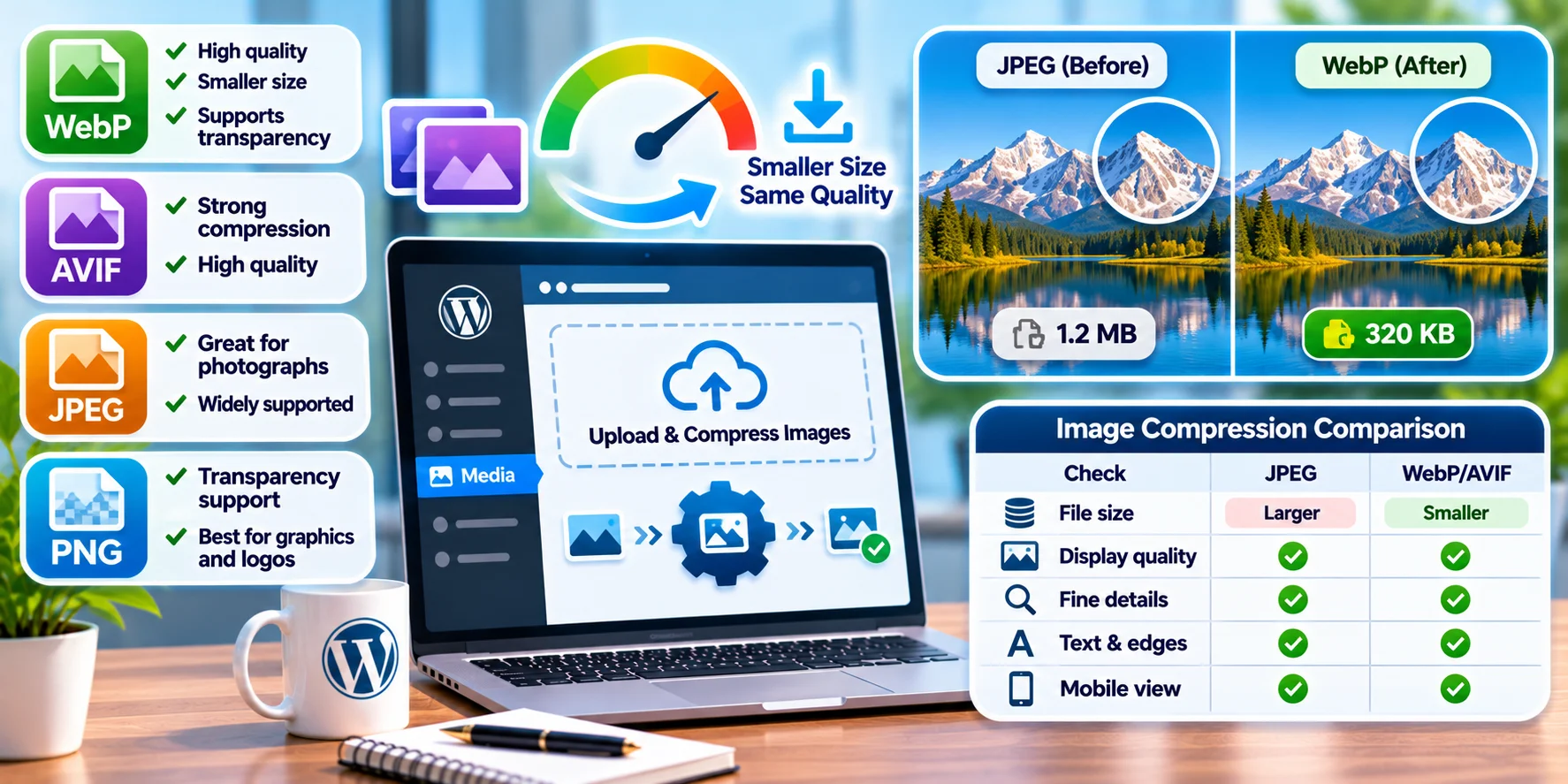
WebP supports photographs and transparency. AVIF can offer strong compression. JPEG remains suitable for many photographs, while PNG can be useful when transparency or other specific features are needed. The best choice depends on the image and your website setup.
How to Compress Images in WordPress
You can compress images before uploading them or use a suitable WordPress optimisation tool. For example, prepare the same photograph in JPEG and WebP.
Compare:
- file size;
- display quality;
- fine details;
- text and edges.
Heavy compression can make a small file look poor. Test the final image on mobile too, especially when it contains important information.
Compare Image Compression Results
Use a simple record for each image you optimise.
| Test detail | Original image | Optimised image |
| Format | Record original format | Record new format |
| Dimensions | Original width and height | New width and height |
| File size | Measured size | Measured size |
| Visual quality | Original appearance | Check for visible damage |
| Page result | Before-test measurement | After-test measurement |
Keep the original file until you confirm the replacement works. For page testing, use PageSpeed Insights and compare the same URL under similar conditions. Do not claim a performance improvement based on file size alone.
3. Write WordPress Image Alt Text That Helps People
Alt text describes an image’s meaning or purpose for people who cannot see it. It can also help Google understand the image alongside the surrounding page content. Good alt text should describe what matters in the image. It should not become a list of keywords.
Examples of Good and Bad Alt Text
Imagine a service page showing a roofer replacing damaged roof tiles.
| Alt text | Assessment |
| roofing roof repair roofer London best roofing service | Keyword stuffing |
| image of worker | Too vague |
| Roofer replacing damaged tiles on a pitched roof | Clear and useful |
The third example explains the activity without repeating unnecessary keywords. You do not need to force the page’s main keyword into every image description.
How to Add Alt Text in WordPress
Open the relevant page or post in WordPress. Select the Image block and find the Alternative text field. Write a short description that matches how the image is used on that page. You can also add default alt text through the Media Library. However, the same image may need different wording when used for different purposes. For example, an image used as a link may need alt text describing the destination or action. WordPress’s Image block documentation explains these settings.
Should Every Image Have Alt Text?
Every image should have an appropriate text alternative, but that does not always mean a written description. A decorative image can use empty alt text:
alt=””
This allows screen readers to skip content that adds no useful information. Images containing meaningful details should have descriptive alternatives. If an image functions as a link or button, its alternative text should explain the action. There is no universal 125-character SEO rule. Write enough to communicate the image’s purpose without unnecessary detail.
4. Use Descriptive WordPress Image Filenames
Filenames can provide a small clue about image content. Clear filenames also make your Media Library easier to manage.
For example:
IMG_4582.jpg
is less useful than:
roof-tile-replacement.webp
Keep filenames:
- short;
- descriptive;
- relevant.
Use hyphens between words and avoid repeated keywords. Rename images before uploading them whenever possible. Changing the filename of an existing image may also change its URL. If you replace an existing file, check website references so nothing breaks.
5. Make WordPress Images Easy for Google to Discover
Discoverability is an important part of WordPress Image SEO. Even a well-compressed image may struggle to appear in Google Images if search engines cannot find or understand it. Google needs access to the image and enough surrounding context.
Use Crawlable HTML Images
For important content images, use standard HTML image elements.
For example:
<img
src=”/images/roof-tile-replacement.webp”
width=”800″
height=”500″
alt=”Roofer replacing damaged roof tiles”
>
Google can discover image URLs inside standard img elements. Images used only as CSS backgrounds are not handled in the same way. This matters when a theme uses a background image for an important project photograph. If an image adds useful information, consider displaying it as a normal image element.
Place Images Near Relevant Content
Google can use nearby page content to understand an image. A completed roof-repair photograph makes more sense beside content explaining that project. Use captions when they add helpful context. Avoid repeating the same wording in the:
- heading;
- caption;
- alt text.
Original photographs of real work can also provide information that generic stock images cannot.
Check Your WordPress Image Sitemap
An image sitemap can help Google discover image URLs, particularly when they are otherwise difficult to find. Some WordPress SEO plugins add image information to XML sitemaps. Others handle image discovery differently. Check what your website already produces before installing another plugin. Google does not require a separate image sitemap for every WordPress website. If important images are already available through crawlable pages, a separate sitemap may not be necessary.
For blogs organised through categories and tags, our planned guide to WordPress Category and Tag Archives covers that wider structure.
6. Improve WordPress Image SEO Without Hurting Core Web Vitals
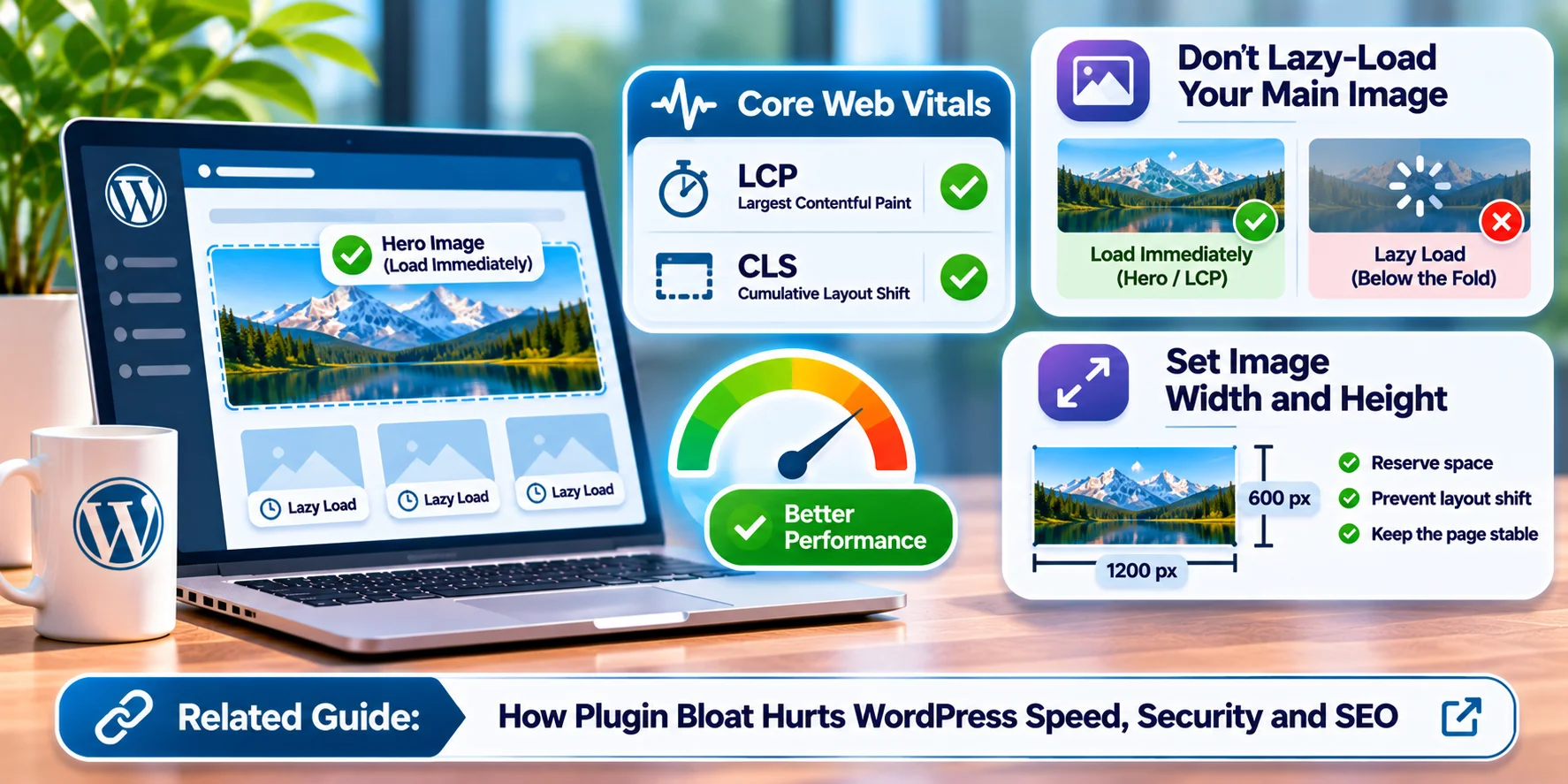
Image optimisation also affects page performance. A large hero image may influence Largest Contentful Paint. Images without reserved space can contribute to Cumulative Layout Shift.
Don’t Lazy-Load Your Main Image
Lazy loading delays images until they are needed. This works well for images further down the page. However, it can delay a hero image that visitors see immediately. Check whether your WordPress theme or optimisation plugin lazy-loads the main image. If the hero image is the LCP element, it should normally load without lazy loading. In some setups, giving it higher fetch priority may also help. Images below the fold can still use lazy loading.
Set Image Width and Height
Specify image dimensions or reserve space using CSS. This helps the browser plan the layout before the image finishes loading. WordPress often adds width and height attributes automatically. Check custom templates and page builders where images still create visible movement. If image changes do not improve performance, check whether another plugin adds unnecessary scripts. Our planned guide, How Plugin Bloat Hurts WordPress Speed, Security and SEO, covers that separate issue.
7. Check Image Metadata and Search Appearance
Alt text and filenames are not the only details search engines may use. Relevant structured data can help describe a page and its images. For example, Article structured data can identify a representative image for a blog post. Your WordPress SEO plugin may already generate this markup. Our planned guide, How to Add Article and Breadcrumb Schema in WordPress, covers implementation in more detail. You can also set a relevant social-sharing image through Open Graph metadata.
This can control some social previews, but it does not replace proper WordPress Image SEO. Use Google’s Rich Results Test when checking supported structured data.
How to Audit WordPress Image SEO
Start with pages containing large images or generating valuable traffic. Review images on the published page, not only inside the Media Library.
| Check | What to look for | Action |
| File size | Oversized downloads | Resize or compress |
| Format | Images that could be smaller | Compare WebP or AVIF |
| Alt text | Missing, vague or repeated descriptions | Describe the image’s purpose |
| Filename | Generic or misleading names | Use clear names for new uploads |
| Layout | Images moving page content | Reserve the correct space |
| Loading | Main images loading too late | Review lazy-loading settings |
| Discovery | Important images not crawlable | Check HTML and page access |
After making changes, confirm that images remain clear and readable. Compare PageSpeed results and review Google Search Console image-search performance where enough data is available. A smaller file does not guarantee higher rankings. The goal of WordPress Image SEO is to make images faster, useful and easier to discover.
Frequently Asked Questions
What Is WordPress Image SEO?
WordPress Image SEO is the process of improving image size, alt text, filenames, loading and discoverability so images work better for users and search engines.
Does Image File Size Affect WordPress SEO?
Large image files can slow page loading and affect user experience. Compressing oversized files may improve performance, although there is no fixed file-size ranking threshold.
Is WebP Better Than JPEG for WordPress?
WebP often produces smaller files at similar visual quality. Compare the actual results before replacing existing images.
Should Alt Text Include SEO Keywords?
Include a relevant term only when it naturally describes the image. Avoid repeating keywords or adding locations the image does not show.
Do WordPress Images Need a Sitemap?
Not always. An image sitemap can help discovery, but Google can also find images through crawlable HTML pages.
Can WordPress Images Appear in Google Images?
Yes, when Google can discover and index them. Useful alt text, relevant page context and accessible image URLs can help, although appearance is not guaranteed.
Need Help With WordPress Image SEO?
Poor image setup can affect page speed, accessibility and search visibility. A proper WordPress Image SEO review can identify oversized files, weak alt text, loading problems and discoverability issues. Wixdek helps UK businesses review WordPress SEO problems and identify practical improvements. Explore our WordPress SEO services to discuss image optimisation and the changes your website needs. Request a WordPress SEO Review
By Wixdek